Everyone reaches a stage where you now need to copy or transfer files to linux server. Might be an images, movies (for Jellyfin), documents or a whole folder. Usually you have two option – good old USB drive (annoying but simple) or using the network utilizing the existing SSH connection.
Let’s focus on the network option as it is very convenient and you should already have it in most standard linux distributions. SCP (Secure Copy Protocol) is a command-line utility that securely transfers files between hosts over an SSH connection.
Modern OpenSSH (≥ 9.0) deprecates the legacy SCP protocol in favor of SFTP under the hood, but the scp command still works identically for users. For new automation, consider sftp
Prerequisites
Before transferring files, make sure you have:
- SSH access – Valid user account on the remote Linux host
- SCP client – for Windows i recommend WinSCP and for Linux it should be pre-installed as part of the existing openssh-client package
- Network reachability – Client needs to be able connect to the server via SSH over the network
- Permissions – Write access on the destination path; read access on the source
Copy files from Windows to Linux
Download, install WinSCP and open it on your Windows machine. Enter the IP Address of your linux server and the credentials. Accept the warning, as we know to which machine we are connecting to.
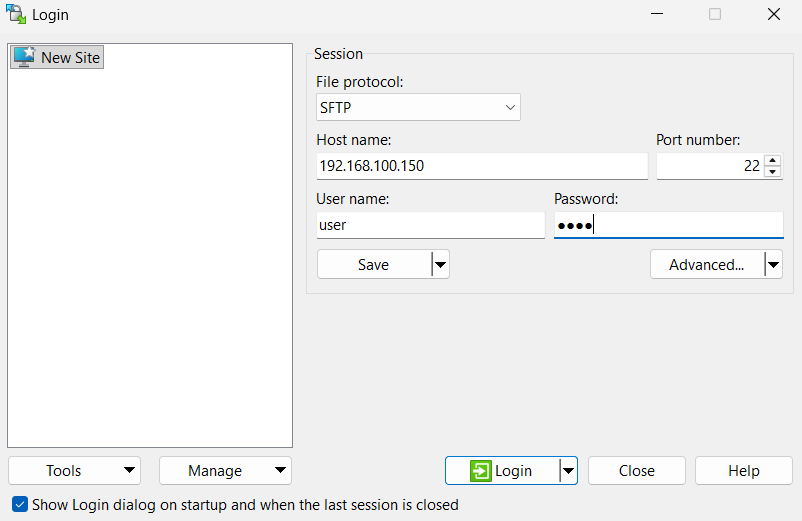
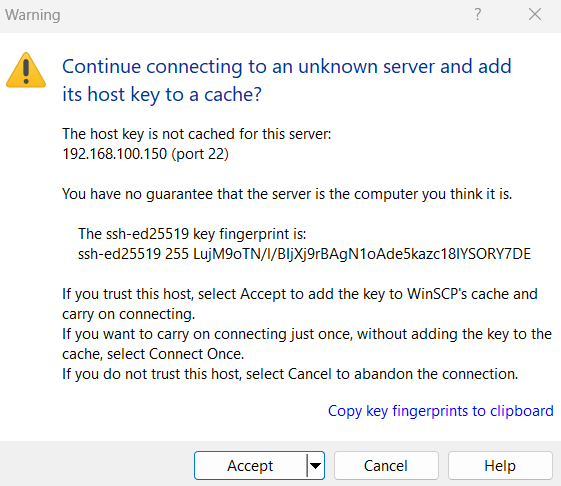
Navigate to your Windows files you want to copy (left side), select them and drag and drop them to the right side. You can only copy the files to a folder you have permissions to, so it is always easier to copy them to your /home/user folder to avoid permissions issues. You could move them later where you need them with the command mv
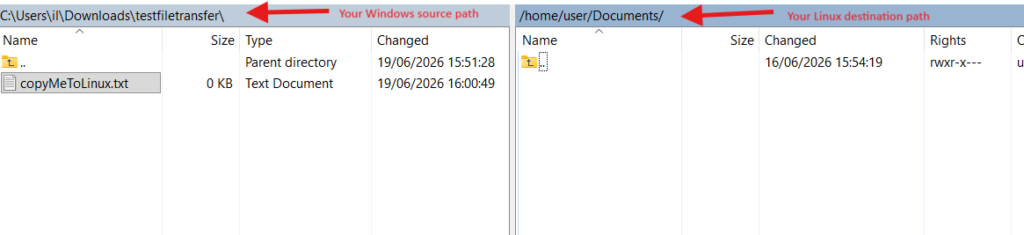
After you drag them, the files will be copied on the linux, so you will see them on both sides.

Copy files from Linux to Linux
Linux has this client already built-in in the ssh client, so we could directly use it from the Terminal. You will need to provide the password separately after executing the command
 scp -r copyMeToAnotherLinux [email protected]:/home/user/Documents/
#Prompt for password will appear after this command
Let us break down what each part of the command means:
- scp -r – the client tool we want to use to copy files and -r for recursive if it is a folder
- copyMeToAnotherLinux – name of the file located in the current folder of the source machine
- [email protected] – this is representing the username and the IP of the destination linux server to which we want to copy the files to
- /home/user/Documents/ – the destination folder where we want the source files to be copied to
That is it. You will not have the file on your destination linux server.
Conclusion
SCP remains a simple, reliable, and universally available tool for secure, one-off file transfers over SSH. Its strengths lie in its simplicity — a single command and it’s bundled with virtually every Linux distribution. However, SCP has clear limitations – no incremental logic and no resume capability. For anything recurring, scheduled, or involving large/changing datasets — you might want to check rsync instead.