In order to be able to manage your server, you need to be able to navigate and create folders, create, modify and view files via the application called Terminal. If you have an SSH session, this is where you end up anyway. This is the place where most of the work is done for the initial setup of the tools, before you are presented with the Web UI. Let’s cover some of the basic linux terminal commands to get you going on your self-hosted lab journey. You do not need to remember everything, as long as you understand the concepts, you can use it just as a reference, when you need it. I often still google exact command syntax for a specific task, but it is much easier to find it, when you know what you want to achieve.
Navigating, creating folders and listing their content
Working your way around folders in Terminal is similar with doing it with a mouse, but you have to specify what to open with your keyboard. Lets have a look at the main command you will use for interacting with folders. Keep in mind that Linux is case-sensitive, so Desktop and desktop can be two different folders.
When you open Terminal by default you should end up in the so called Home Folder which is located in /home/<your user>. This is like your personal space on the machine.
pwd (print working directory) – shows the full path in which folder the Terminal is currently in, your current location

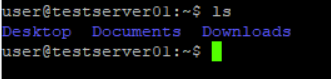
ls (list contents of directory) – list the content of the current folder, for example if you are in your Home Folder and type ls you will see the sub-folders inside, like Desktop, Documents, Downloads
cd (change directory) – to navigate to a folder you see listed, like Desktop, type cd Desktop and then list the contents to see what files / folders are in there with ls. There is a file name fileOnDesktop.txt. To return one step back to the previous folder use cd .. (cd dot dot)
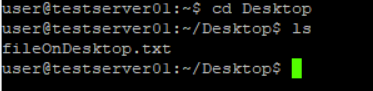
Note that cd is relative to the directory you are in and to visualize that lets see this example
- cd Desktop – it searches for a folder in current location called Desktop and navigates to it
- cd /home/user/Desktop – this will navigate to the same folder, no matter in which location your Terminal is currently at as it uses the full path from the top root level indicated with the starting / (slash)
- cd .. (two dots)- this will go back one step in the directory tree. For example from /opt/docker/ it will go back to /opt
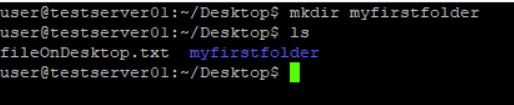
mkdir (make directory) – to create a folder on the Desktop (where you are currently in if you follow from the start) type mkdir myfirstfolder and then ls to see that it is actually there
rmdir (remove empty directory) – to remove the folder you just created use rmdir myfirstfolder and verify it is not there with ls

rm -r (remove recursively everything in the specified folder) when working with folder it is often the case you need to specify -r parameter for recursive, so that it does what you expect it to do
Be careful when using rm for files or folders , as this will delete the whole folder with contents and there is no Recycle Bin to return it back!!!
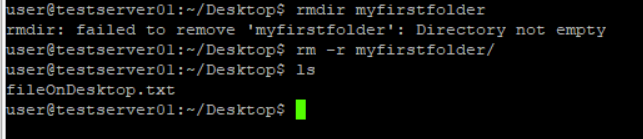
If the folder you are trying to delete is not empty, you will get this error: rmdir: failed to remove ‘myfirstfolder’: Directory not empty
To delete a folder with contents (files or other sub folders) inside of it you have to use rm -r myfirstfolder
cp -r (copy folder and its content recursively) – as mentioned above, you often need the parameter -r for recursive when deleting and copying folders and their content cp -r myfirstfolder myfirstfolderCopy. As always make sure your Terminal is in the correct location to find the source folder or use full paths starting from the top level (starting with /)

Viewing, creating and modifying files
After you have navigated to a folder, lets try to create one file with the tool vi
Creating a file – to create a file use the command vi <filename>. For example to create a new file use vi myfirstfile.txt . This will create a new file at your current terminal location (you could use the commands pwd to see where you are at the moment) with the specified name (myfirstfile.txt) and open it for edit. If the such file exists it will open it for viewing.
Viewing files – to open a file and see its contents use vi <filename> for example vi myfirstfile.txt, will open for viewing the file in the same folder the terminal is currently located called myfirstfile.txt
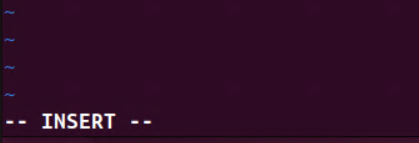
Modifying files – same command as for viewing vi <filename> (Example: vi myfirstfile.txt) but after it opens press i (the English letter i for Insert). You will now be able to type with your keyboard inside the file. To verify you are in the correct state, you can check for the word INSERT on the bottom left corner like this:
After you modify the file, you have to exit the Insert mode with ESC key to save it with :wq. Literally press Escape and type column w q, for write and quit. If you want to save without quit, only :w
Pasting copied text – while modifying file with vi and in the insert mode with i (as shown in above picture) you can paste text with Mouse Right Click or Shift + Mouse Right Click
Discard changes in a file – if you started modifying a file and at some point decide to discard your changes and not save them, you can use ESC to exit Insert mode and :q! (column symbol (:) letter (q) for quit and exclamation mark (!) to discard changes)
Copy a file – if you want to create a copy of the file, to keep it as backup or as starting point of another one, you can use cp <sourcefile> <destinationfile>. For example cp firstfile firstfile3 will take the contents of a file firstfile and create a new file with the name firstfile3. You can verify that it is there with ls
Deleting a file – rm <filename> – example: rm firstfile – there is no trash or recycle bin, file is gone forever
Renaming a file – mv <filename> <newfilename> – this command will rename the specified file or folder to match the new file name. The mv command can also move the file or folders in another directory, if you provide it a path
Tab completion of folders and file names
As keyboard and Terminal are often your best friend in linux, there is a lot of typing required. To help for that there is a functionality called Tab completion. What it does is basically trying to understand which files or folders name you want to type, based on where you are. Lets give an example folder structure:
testfiles/
├── firstfile
├── secondfile1
└── secondfile2
If your terminal is currently in testfiles folder(check with pwd) and you can see the files with ls and you want to open one for viewing with vi, start typing the first few letters of firstfile in Terminal – like vi fi or vi firs and hit the Tab button on your keyboard, it will automatically complete the full file name – vi firstfile, if it is the only file starting with those letters
This is where the second example comes, as if you try to do the same with file secondfile1 and type only se or sec and hit Tab it will only complete the file name until there is a letter or symbol that is different (could be same letter but small or capital). In our case we have two files with same part in the name, but different at the end, so hitting Tab it will only complete to secondfile and you will have to provide the last symbol as it can be any of the two (1 or 2). This works the same, even if the difference is in the middle of the word. You can provide a single character and hit Tab again and it will again try to complete the word, as long as there is only a single file or folder name that has those exact characters
The same logic applies to folders. Lets use the cd for this example
testfolder/
├── firstfolder/
├── secondfolder1/
└── secondfolder2/
If you want to navigate to firstfolder like (manually with cd firstfolder), you only need to type cd fir and then hit Tab and it will auto-complete the full command to cd firstfolder, as it is the only one that has those characters in your current location.
For the secondfolder1/2 it will only autocomplete the name until the different number, so if you try cd sec and then hit Tab it will auto-complete only to cd secondfolder (without the number, as it does not know which one you want) so you will have to add the last part manually.
Getting information about your user and server
hostname and user can be seen on each line of the terminal in the form <user>@<hostname> – example: user@testserver01

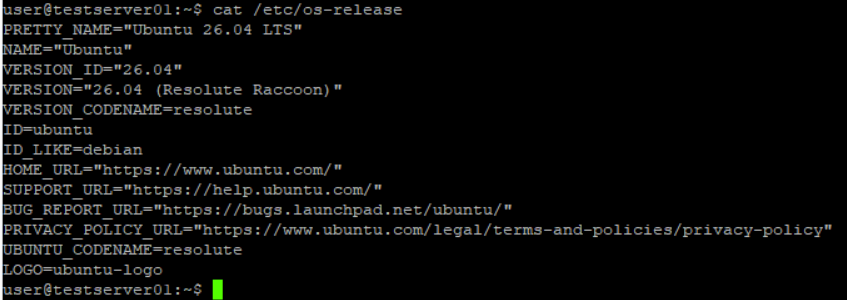
cat /etc/os-release – shows the Ubuntu version -> in that case Ubuntu 26.04 LTS
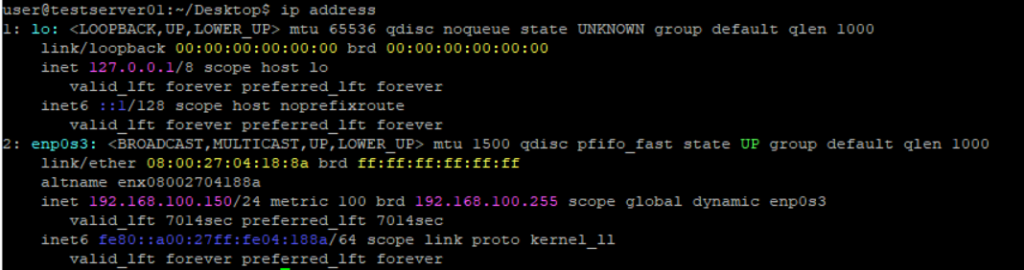
ip address – shows the ip address of the server in screenshot below, namely 192.168.100.150
df -h – shows the used and available storage space – in our case 28% Used for our system mounted on /

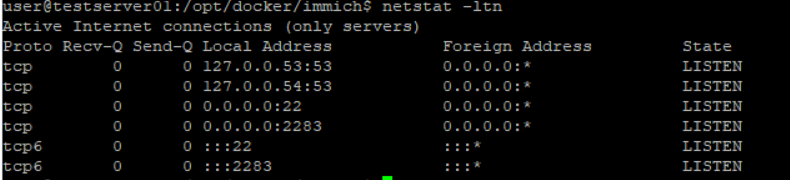
netstat -ltn shows what ports are listening on your server. Useful to check if a service (like web server, database, or a web interface is up and running). Example port 2283 (used by immich) is listening, so the application should be ready to accept connection
Elevate permissions / root privilege
For some actions like installing tools, like docker, you will need more permission – the so called root or admin or sudo permissions. To elevate yourself you need to type sudo in front of the command you want to execute. Lets see the following example:
When trying to install the net-tools via apt install command i get the error Permission denied, but after i add sudo and type my password (same as the current user password) it proceeds to install the package
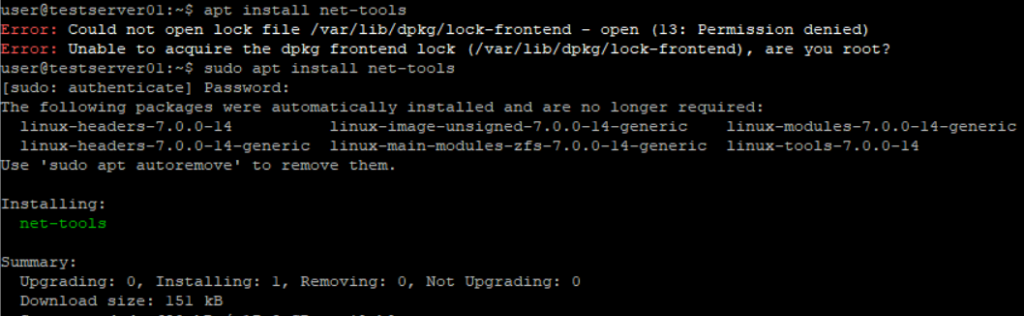
So if you are unable to run a command and see a similar error, you might need to try it with sudo infront
If you do not want to type sudo all the time, you can run once sudo su. That will bring you on the root context (which you will see on the terminal shown as root@servername) and you will have always the needed permissions. While convenient, this might be a bad idea, as you might do a lot of bad things without realizing and there might not be a confirmation prompt to make you think twice.

Installing, removing and updating packages
sudo apt update – update repositories list and the list of packages available in them. It will not update the Ubuntu or any other package
sudo apt upgrade – this upgrades existing packages on your system for which there is a newer version
sudo apt search <package_name> – find if such package is available for installation or which package is needed to receive this tool. Example:
apt search ifconfig – shows which package contains the command ifconfig
apt search net-tools – shows if there is a package with the name net-tools
sudo apt list <package_name> –installed – check if a package is already installed
sudo apt install <package_name> – installs the specified package and its dependencies, if it is available in the repositories
sudo apt remove <package_name> – remove the package binaries, but leaves the configurations
sudo apt purge <package_name> – removes the package binaries and deletes configuration files
sudo apt autoremove – remove packages that were installed as dependencies, but are no longer needed, as the main package was removed
Docker commands
sudo docker compose up -d – build and start the docker containers specified in the docker-compose.yml in the current folder
sudo docker compose down – stops the running docker containers specified in the docker-compose.yml in the current folder
sudo docker container ls – list all running docker containers with name and port information
sudo docker container logs <container_name> -n 100 – list last 100 rows of the logs from the specified container. Example: sudo docker container logs jellyfin -n 100
Troubleshooting the basic commands and common mistakes
Even when you think you know what you are doing, sometimes it does not work. Lets see commons mistakes and troubleshooting steps:
When i open a file with vi, it is empty
Check with ls if the file is really there and does it have the exact file name. Case matters so file and File are different files. If there is no such file it will attempt to create one and opens an empty file for you, which you can modify (with i) or close (with Esc :q)
I can’t find a file or folder in terminal
If you know there should be a file there or you see it with the file browser, but not with terminal check if the terminal is in the correct folder with pwd. If you are at the right place, list the folder contents with ls
Double check if you are trying a relative path (relative to your current location, like cd docker) or full path (starting from root with /, like cd /opt/docker/app1)
I can’t execute a command, it says permission denied
Try with adding sudo infront of the command to elevate your permissions